
You’ve heard about ChatGPT from friends, coworkers, maybe even your parents. Everyone seems to be using it, and you’re wondering how to get started without feeling lost.
Here’s the good news: ChatGPT is much easier than it looks. If you can send a text message, you already know the basics. The only real skill is learning how to ask for what you want, and that’s something you pick up quickly.
In this guide, I’ll walk you through everything step by step: how to sign up, how to write your first prompt, how to get better answers, and how to avoid the common beginner mistakes.
What Is ChatGPT?
ChatGPT is an AI chatbot made by OpenAI. You type a question or request in plain English, and it replies in a natural, conversational way. It can write, explain, summarize, brainstorm, translate, and help you think through problems.
Under the hood, it’s powered by a large language model trained on huge amounts of text. You don’t need to understand the technical side. Just think of it as a very fast assistant that’s good at language.
One important thing to remember: ChatGPT is helpful, but it isn’t perfect. It can make mistakes and sometimes sounds confident when it’s wrong. We’ll talk about how to handle that later.
Step 1: Create Your Account
Getting started takes only a couple of minutes.
- Go to the official ChatGPT website (chatgpt.com) or download the ChatGPT app from the App Store or Google Play.
- Click Sign up.
- Create an account using your email address, or sign in with a Google, Microsoft, or Apple account.
- Verify your email if you’re asked to, and follow the quick setup prompts.
Always use the official website or app. Fake copycat sites exist, and you don’t want to hand your login details to the wrong place.
Free accounts are available, and they give you access to a capable model with some usage limits. Paid plans, which cost around $20 a month at the time of writing, offer higher limits and extra features. You don’t need a paid plan to learn the basics.
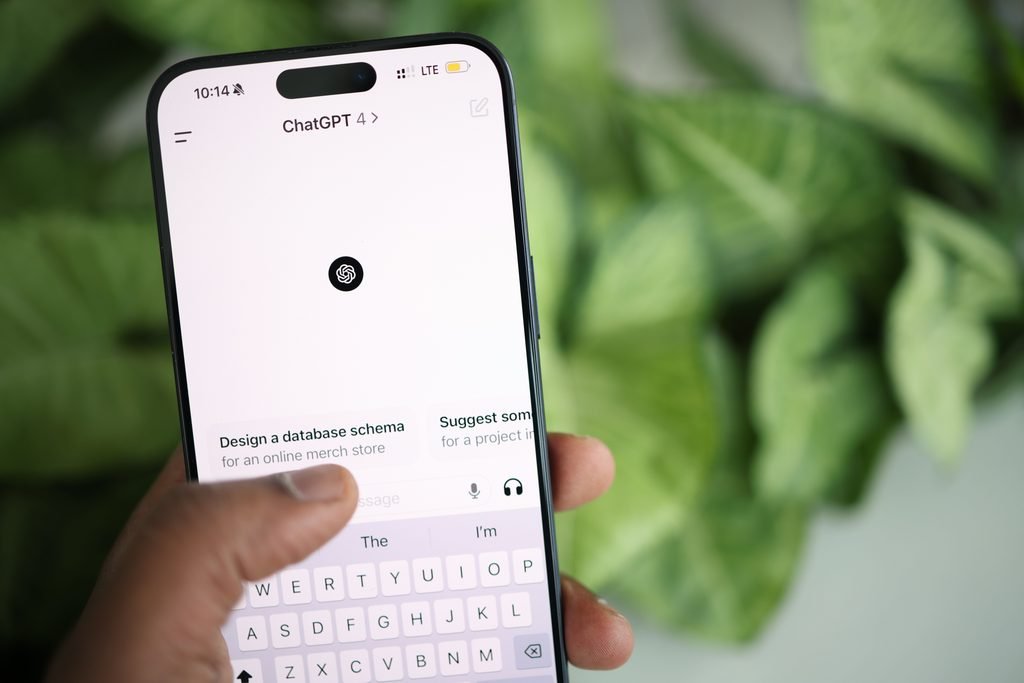
Step 2: Get to Know the Screen
When you open ChatGPT, you’ll see a few simple things:
- The message box at the bottom, where you type your questions.
- A chat history list on the side, where your past conversations are saved.
- A new chat button, which starts a fresh conversation.
- Settings, where you can change your preferences and manage your account.
That’s pretty much it. You might also see buttons for attaching files or using voice, depending on your plan and device. Don’t worry about those yet.
Step 3: Write Your First Prompt
A prompt is just the message you type in. Let’s try something simple. Type this into the message box and press Enter:
“Explain how a credit score works in simple terms.”
In a few seconds, you’ll get an easy-to-read explanation. That’s all there is to it.
Now try a different type of request:
“Write a friendly email to my landlord asking when the broken heater will be fixed.”
Notice how the answer changes based on what you asked for. ChatGPT can explain, write, plan, and more. The key is being clear about what you want.
Step 4: Learn to Write Better Prompts
This is where beginners go from okay results to great results. The more clearly you describe what you need, the better the answer will be.
Here’s a simple formula you can use: role + task + details + format.
Weak prompt:
“Write a workout plan.”
Strong prompt:
“Act as a personal trainer. Create a 3-day-a-week workout plan for a beginner with no equipment. Each session should be 30 minutes. Present it as a simple table.”
See the difference? The second prompt tells ChatGPT who to be, what to do, the key details, and how to format the answer.
Here are a few more habits that help:
Give context. Mention who the answer is for. “Explain this to a high school student” gives a very different result than “explain this to a software engineer.”
Set the tone. Ask for “friendly,” “professional,” “casual,” or “persuasive,” depending on what you need.
Set a length. Try “in under 150 words” or “in five bullet points.”
Give examples. If you want a certain style, paste a short sample and say, “Write in a similar style.”
Step 5: Keep the Conversation Going
One of ChatGPT’s best features is that it remembers what you’ve said within the same chat. You don’t have to start over every time.
If the first answer isn’t quite right, just tell it what to change. For example:
- “Make it shorter.”
- “Use a more casual tone.”
- “Add two real-life examples.”
- “Explain the second point in more detail.”
- “Rewrite this for a 10-year-old.”
Think of it as a back-and-forth conversation with a helpful assistant, not a vending machine. Most great results come from the second or third message, not the first.
Also, start a new chat when you switch to a completely different topic. It keeps the conversation clean and the answers more focused.
10 Practical Ways to Use ChatGPT
Not sure what to ask? Here are some ideas that work well for beginners:
- Write and polish emails. Paste your rough draft and ask it to make it clearer and more professional.
- Summarize long text. Paste an article or a set of notes and ask for the main points.
- Learn something new. Ask it to explain a tough topic step by step, or quiz you on it.
- Brainstorm ideas. Get blog topics, gift ideas, business names, or party themes.
- Plan your day or week. Turn a messy to-do list into an organized schedule.
- Create meal plans. Tell it your goals, your budget, and what’s in your fridge.
- Prepare for interviews. Ask it to act as the interviewer and give you feedback on your answers.
- Improve your resume. Paste your experience and ask for stronger bullet points.
- Translate text. Get a quick translation, and ask it to explain tricky phrases.
- Get coding help. Ask it to explain code, find errors, or write a small script, even if you’re a beginner.
Common Beginner Mistakes to Avoid
Being too vague. “Help me with my business” is too broad. Say what kind of business, what you need, and what you’ve already tried.
Trusting everything it says. ChatGPT can produce wrong facts, outdated information, or even made-up sources. Always double-check anything important, especially related to health, money, or legal matters.
Sharing sensitive information. Don’t paste passwords, bank details, private company data, or other confidential information into a chatbot.
Giving up after one try. If the first answer isn’t great, refine your prompt instead of quitting. Small tweaks often make a big difference.
Copying and pasting without editing. AI writing can sound generic. Add your own voice, details, and personality before you share it.
Using it for everything. It’s a helper, not a replacement for your own thinking. Use it to speed up your work, not to skip understanding the topic.
How to Handle Mistakes and “Hallucinations”
Sometimes ChatGPT will state something that sounds right but isn’t. People call this a hallucination. It happens because the model predicts likely words rather than checking facts in a database.
Here’s how to protect yourself:
- Verify key facts using trusted sources.
- Ask it to show its reasoning or explain how it reached an answer.
- Be careful with numbers, dates, quotes, and links. These are the places where errors show up most often.
- Ask follow-up questions such as “Are you sure?” or “What could be wrong with this answer?” This sometimes helps it catch its own mistakes.
A Few Useful Features to Explore Later
Once you’re comfortable with the basics, you can look into other things ChatGPT may offer, depending on your plan and the current version:
- Uploading files or images to ask questions about them
- Voice conversations for hands-free chatting
- Custom instructions so ChatGPT remembers your preferences
- Web search for more current information
Features and availability change over time, so check the app or the official website to see what’s available to you.
Frequently Asked Questions
Is ChatGPT free?
Yes, there’s a free plan with some usage limits. Paid plans offer more usage and extra features.
Do I need to download anything?
No. You can use ChatGPT in your web browser. There’s also a mobile app if you prefer it.
Is ChatGPT safe to use?
It’s generally safe if you use the official site or app and avoid sharing sensitive information. Read the privacy policy to understand how your data is handled.
Can ChatGPT replace Google?
Not completely. It’s great for explanations and drafts, but for current news, specific facts, and verified sources, a search engine is still useful. Many people use both.
Does ChatGPT always give correct answers?
No. It can make mistakes, so always double-check important information.
Can I use ChatGPT’s writing for my blog or work?
Often yes, but you should review and edit it, make sure it’s accurate, and add your own voice. Also check any rules from your employer or school.
Final Thoughts
Using ChatGPT isn’t complicated. Sign up, type a clear request, and keep refining until you get what you need. The more you practice, the more natural it feels.
Start with one small task today, like rewriting an email or explaining a topic you’ve been curious about. In just a few minutes, you’ll see how helpful it can be, and you’ll be well on your way from beginner to confident user.
Ready to compare your options? Check out our guide to [ChatGPT vs Gemini vs Claude: which AI is best?]